
B2B Agency Live AI documentation
Everything on the platform, step by step: build your website, sell online, and create with every AI tool in one place.
Version 4.8 · Last updated October 28, 2026 · What changed
Getting started
- Open b2bagencyliveai.com. The whole platform opens straight away: no separate website to leave.
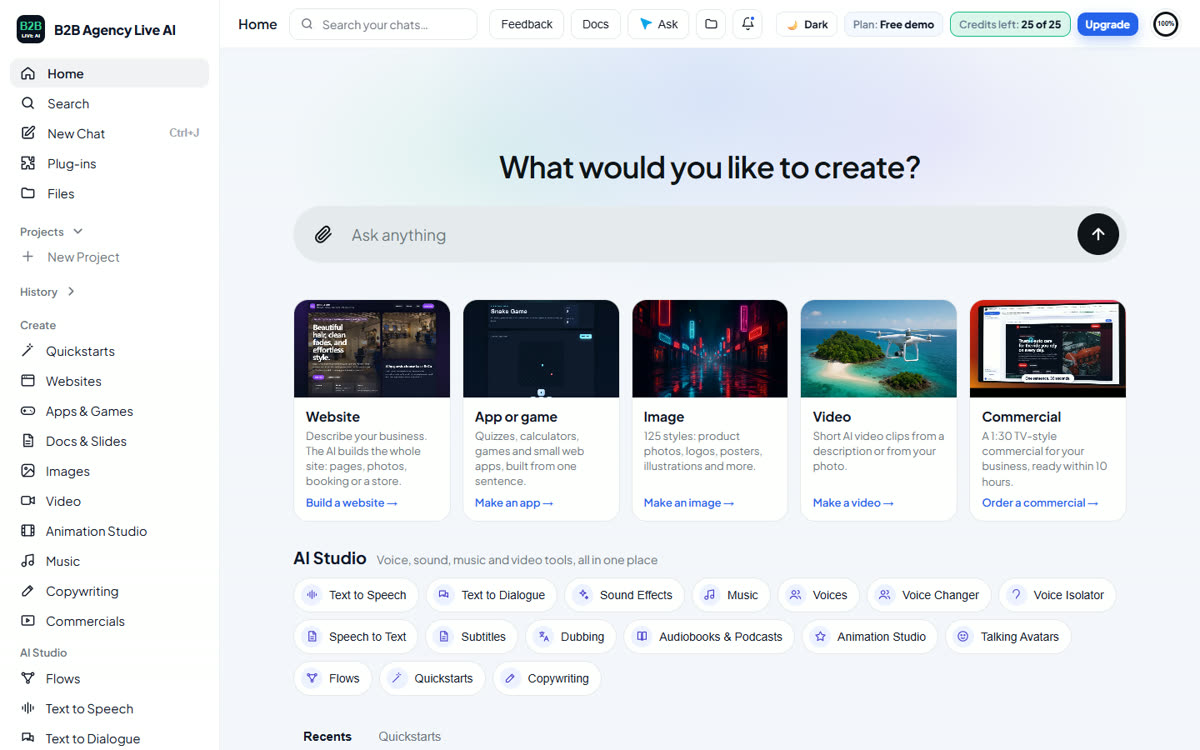
- Under What would you like to create?, type what you want in the Ask anything box, for example “A website for my bakery in Austin with online ordering”, or pick a card: Website, App or game, Image, Video or Commercial.
- The AI builds it while you watch. Ask for changes in plain words: “make the header green”, “add a gallery”.
- When you like it, pick a plan and publish.
Finding your way around
Home shows, from top to bottom: the Ask anything box, five picture cards for what you can create (Website, App or game, Image, Video and Commercial, each opening its tool), the AI Studio tools, and your Recents and Quickstarts.
The side menu opens every part of the platform as its own page. On a phone, tap ☰ to open it. Every page has a ← Back button that returns to the page you came from.
- New Chat (Ctrl+J), Search, Projects, History and Files keep your work organised.
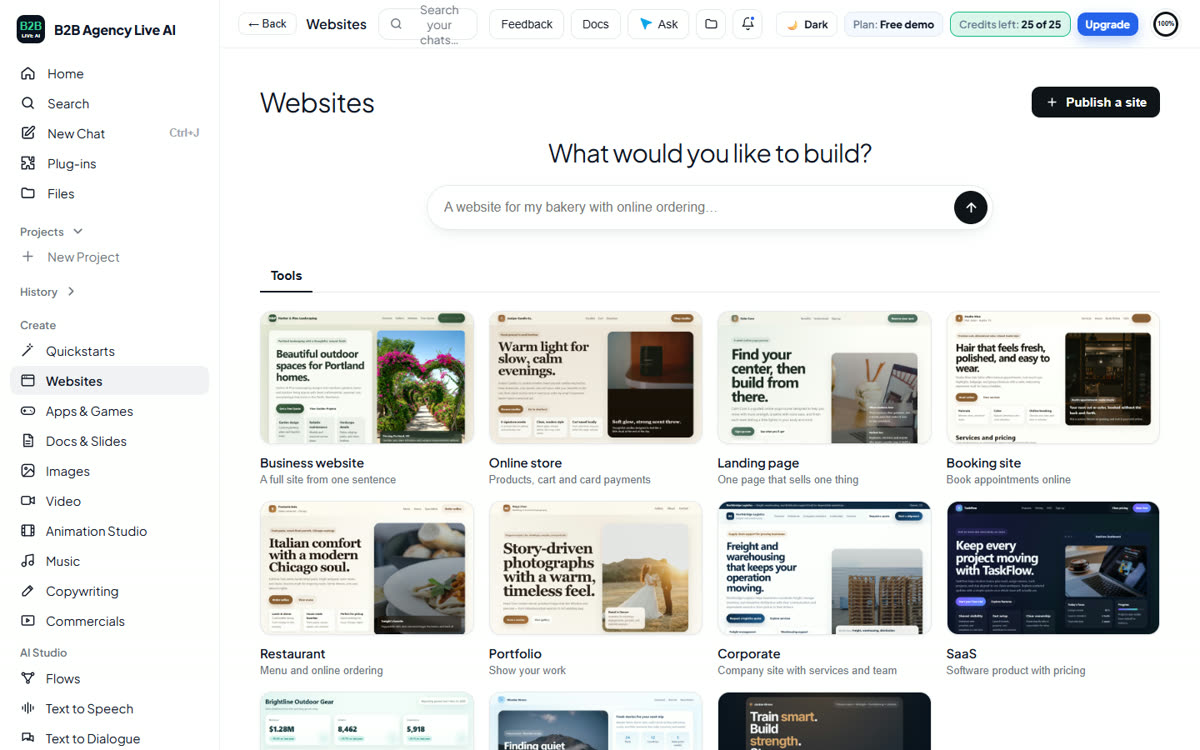
- Create: Quickstarts, Websites, Apps & Games, Docs & Slides, Images, Video, Music, Copywriting and Commercials. Websites covers business sites, online stores, landing pages, booking sites, restaurants, portfolios, corporate, SaaS, dashboards, blogs and link-in-bio pages; Apps & Games covers games, calculators, quizzes, productivity, chatbots, mobile apps, desktop apps and widgets, browser extensions and data notebooks; Docs & Slides makes presentations, documents, spreadsheets and charts. Every tool shows a real example and ready ideas.
- AI Studio: Flows, Text to Speech, Text to Dialogue, Sound Effects, Voices, Voice Changer, Voice Isolator, Speech to Text, Meeting notes, Subtitles, Dubbing, Audiobooks & Podcasts and Talking Avatars.
- Sell & grow: Sell & Get Paid, Everyday services, Packages, Marketing & Growth, Domains & Hosting. Every box opens a details page with what you get, how it works, real screenshots and what's included.
- Account: Plans & Billing, Usage, Clients, My business, Contacts and Refer & earn.
- Client accounts (Pro: 10 clients, Max: 50): add each client under Account > Clients and they get a full account of their own (websites, CRM, contacts, email lists, bookings, store, funnels and chats kept separate). Pick a client with the button next to the page title to work inside it. Your plan's AI credits and websites are shared across your clients. The Clients page shows each client's AI use this month, and you can give any client a monthly cap (5% to 75% of your credits): you get an email at 80% and when the cap is reached, and that client's AI pauses until the 1st, so one busy client can't use up everyone's credits; Copy setup copies the business profile, CRM pipelines, workflows, booking setup, menu and email settings from one account to another (never contacts or orders).
The top bar has Feedback, Docs (this page), Ask (a help chat: ask it anything about the platform, moving in from another platform, or anything else), Files, What's new, Dark mode, your plan and credits, and the account menu with your balance. Every Upgrade or Choose a plan button opens Plans & Billing.
Without a plan every page is open to explore, empty and ready like a new account. When you try something that needs a plan (saving, sending, publishing or making something), an Upgrade to unlock this window names what needs a plan. Press Keep exploring to stay on the page, or Compare plans to open Plans & Billing with that reason at the top. Nothing you started is lost.
Credits and the free demo
The free demo, in three steps
- 25 free credits, no card. Your first build needs nothing at all. To keep building after it, enter your email and the 6-digit code we send (once).
- Fresh credits every day you use them up. When your 25 credits run out, a new set of 25 becomes available 24 hours later. This repeats with no limit.
- One extra boost, once. The first time your credits run out, we email you a button that adds 25 more credits right away. It works for 7 days and each email address can use it once.
Credits on a plan
Every AI action uses credits from your plan's monthly balance: chatting with the builder, making images, video, music and voice, and every AI Studio tool. Each tool shows its approximate cost next to the Generate button, and the account menu shows your total and remaining credits.
| Plan | Credits a month |
|---|---|
| Starter | 18,923 (16,141 on yearly) |
| Builder | 38,990 (31,243 on yearly) |
| Pro | 85,400 (66,050 on yearly) |
| Max | 173,800 (132,350 on yearly) |
Yearly plans cost 25% less, so they come with slightly fewer credits each month (the number in brackets). Everything else is the same as the monthly plan.
Credits refresh on the 1st of each month, and unused credits roll over to the next month, up to one extra month's worth. Need more? Use Add credits in the Billing window for a top-up that never expires, or turn on Auto top-up. Each tool also has a daily limit that grows with your plan.
Build a website
The website builder
- What it does
- Describe your business and the AI builds a whole website while you watch: pages, real photos, a map, contact forms, booking or a store. Apps & Games works the same way for web apps, quizzes and games, and Docs & Slides for presentations, documents, spreadsheets and charts.
- How to use it
- Type one sentence in Ask anything on Home, or open Websites and pick a kind (business, online store, landing page, booking, restaurant, portfolio, corporate, SaaS, dashboard, blog, link-in-bio). Mention your city and what you sell.
- Watch the live preview fill in.
- Ask for changes in plain words as many times as you like: “make the header green”, “add a gallery”, “add a Book now button”.
- Fill in My business once so the AI uses your name, city, hours, offer and brand color everywhere.
- What's included
- Every kind of site and app, each with a real example and ready ideas
- Real photos, maps, forms, booking, ordering and store sections on request
- Phone, tablet and computer previews
- Download the code any time
- Credits or costs
- Each request to the builder uses credits from your balance; bigger builds use more than small changes. The free demo includes 25 credits.
- Common issues
- The result isn’t what I meant: say exactly what to change, one thing at a time (“the photos are missing”, “the menu should be on the left”).
- The demo asks for my email: after your first build, enter your email and the 6-digit code once to keep building. If you already tried the free build on this device, it asks right away.
- A big build is taking a while: large sites, apps and games can need a few minutes. The build keeps going and the result appears by itself; keep the page open. If a reply ever comes back empty, press Try again.
- Credits ran out mid-project: your work is saved; add credits, pick a plan, or come back when fresh demo credits arrive.
The side-by-side builder
- What it does
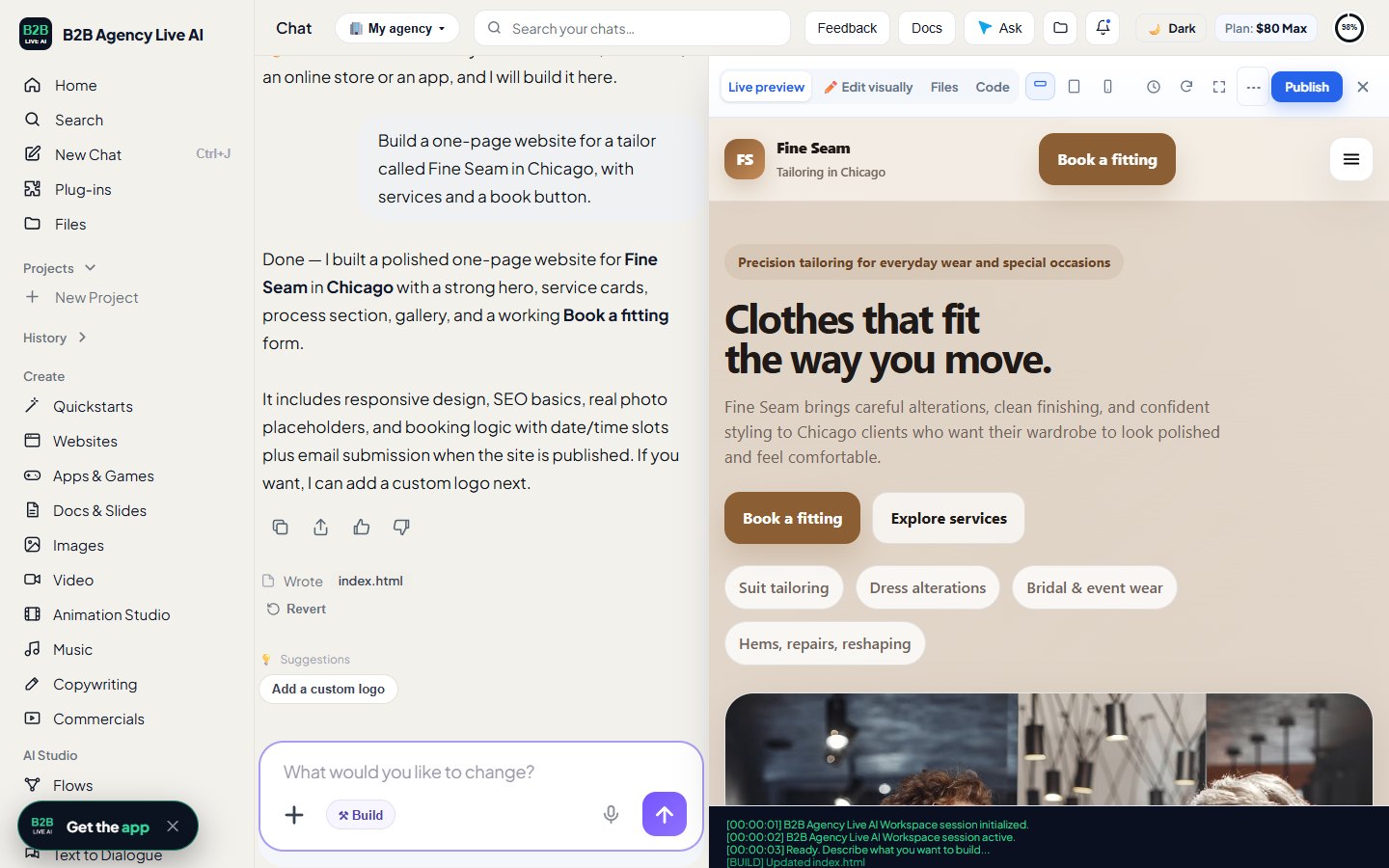
- As soon as the AI builds something (a website, an app or game, a document or slides), the screen splits: your chat on the left, the live result on the right. Under every build you see what it did (“Wrote index.html”, “Edited styles.css”) and ideas for what to do next.
- How to use it
- Ask for something to be built. The result opens on the right; keep chatting on the left in What would you like to change?
- Press a suggestion under a build to put that idea in the box, then send it.
- Want to talk it through first? Switch the box from ⚒ Build to 💬 Discuss (or press Ctrl+.). The AI answers or proposes a plan and changes nothing. Press Approve and build to have it build the plan, or Reject.
- Changed your mind about a build? Press Revert under it: your project goes back to how it was before that request (later changes are undone too).
- Press the clock in the preview bar for Version history: every build in the chat, newest first. Preview one to look at it, or Restore it to keep working from there.
- Press the ✕ at the far right of the preview bar to close the result and see only the chat; Show website at the top right brings it back. Full view makes the result fill the screen.
- On a phone the result fills the screen; press Chat to edit to switch to the chat and Show the result to switch back.
- What's included
- Live preview, Edit visually, Files and Code, with phone, tablet and computer sizes and Refresh
- The list of files written or edited by every build, and next-step suggestions
- Build / Discuss, with Approve or Reject for a plan
- Revert under every build and a Version history with preview and restore
- Publish right from the preview bar
- Credits or costs
- Builds use credits as before. A Discuss message uses a few credits, like any chat message, and builds nothing. Revert, Version history and switching views are free.
- Common issues
- I don’t see the split: it appears once a chat has a build; on Home and in a plain conversation the chat stays full width. If you closed it, press Show website at the top right.
- My versions are missing on another computer: sign in; when you are signed in, Version history follows your account (the newest 20 versions of each chat). Builds made before October 26, 2026 stay in the browser they were made in.
- Discuss built nothing: that is the point of Discuss; press Approve and build (or switch back to Build) when you are ready.
Edit visually
- What it does
- Change your website by clicking on it, without writing a request.
- How to use it
- Press ✏️ Edit visually above the preview.
- Click any text and type over it (bold, italic, color and links too).
- Click a picture to replace it with your own photo or a new AI picture.
- Use the section bar to move a section up or down, copy it, change its background or remove it.
- Press Done to return to the normal preview.
- What's included
- Every change saves on its own
- Undo takes back the last change
- Credits or costs
- Free. Only a new AI picture uses credits.
- Common issues
- I can’t click a part: some parts are built from code (like a live map); ask the builder to change those.
- A change looks wrong: press Undo.
Publish and domains
Publishing
- What it does
- Puts your website online with free HTTPS at a b2bagencyliveai.com address, or at your own domain.
- How to use it
- Press Publish above the preview and choose an address.
- To use your own domain, open Domains & Hosting, search a name to see if it’s free and what it costs, and tap a price to buy it, or connect one you already own.
- Copy the records shown into your domain provider if it’s a domain you bought elsewhere.
- What's included
- Free HTTPS and hosting
- Get found on Google built in: your business details in the format Google reads, a sitemap, and search engines told the moment you publish, plus a step-by-step guide to your free Google Business Profile
- On paid plans, also in Get found: paste your Google Search Console and Bing verification codes and your Google Analytics, Tag Manager and Clarity IDs once and they go on every page; the AI writes a separate page for each service and each town you serve (added to your sitemap and linked at the bottom of your site); and a list of your pages with “Check on Google” and “Inspect” buttons to see if Google shows them yet
- Websites online: Free 1 (with our link), Starter 1, Builder 3, Pro 10, Max 50
- Credits or costs
- Publishing is included. Domains have a fixed yearly price (a .com is $12.99 a year).
- Common issues
- “Address taken”: pick another address.
- No free website slot: unpublish an old site or move up a plan (client accounts share your plan’s websites).
- Domain not working yet: DNS can take up to 48 hours; remove old records for the same name. HTTPS turns on by itself.
My business
My business
- What it does
- Your business details in one place, used by the AI in every website, ad, post, email and commercial.
- How to use it
- Open My business (under Account).
- Enter your business name, city, what you sell, your customers, three reasons people choose you, your offer, website, phone, email, hours and brand color.
- Press Save.
- What's included
- Used across every tool
- Your business email also receives customer replies
- Credits or costs
- Free.
- Common issues
- The AI used old details: update My business and ask for the change again.
- Replies don’t reach me: add your business email here.
Plug-ins
Plug-ins
- What it does
- Our own tools plus 30 website add-ons the AI places on your site for you.
- How to use it
- Open Plug-ins in the side menu.
- Pick one and follow its steps; for outside services, paste your own link or ID.
- What's included
- Our tools: booking, ordering, tickets, invoices, card payments, gift cards, promo codes and loyalty, WhatsApp button, Get found on Google and the AI tools
- Add-ons: pay buttons, scheduling, video players, maps, reviews, newsletter sign-up, analytics and more
- Credits or costs
- Our tools are included in paid plans. Outside services may charge you directly.
- Common issues
- An add-on doesn’t show: check the link or ID you pasted, then ask the builder to place it again.
Sell and get paid
Every service is built into your own website: the AI adds a button and its own page in your design and colors, and you also get a link and a QR code. We take 0% of your sales on every plan; Stripe charges its own card fees, as it does everywhere.
Card payments (Stripe)
- What it does
- Lets customers pay you by card, straight into your own Stripe account.
- How to use it
- Open Sell & Get Paid and press Connect my Stripe account.
- Finish Stripe’s steps (about 5 minutes).
- What's included
- Card payments for orders, deposits, tickets, invoices, gift cards, memberships and funnels
- Money goes to you, not through us
- Credits or costs
- 0% from us. Stripe’s own card fees apply.
- Common issues
- Card buttons show a message: Stripe hasn’t approved your account yet; finish its steps. “Pay at the visit” bookings keep working meanwhile.
Online booking
- What it does
- A booking page where customers pick a service, a staff member and a free time, then pay a deposit or pay at the visit.
- How to use it
- Open Sell & Get Paid → Online booking.
- Pick your kind of business and add services (time, price, optional deposit), staff and opening hours.
- Tick Online booking is open and save.
- Share the booking link or QR code, or ask the AI to add a Book now button to your site.
- Press Add to Google Calendar or Add to Apple Calendar or Outlook to see every booking in your own calendar.
- What's included
- Confirmation emails, a reminder the day before (also by text when your texting number is connected) and a link where customers change the time or cancel
- No-show protection: a change/cancel window, a no-show fee on a card customers save when they book (charged only when you tap it), and automatic deposit refunds when someone cancels in time
- A live schedule screen for the front desk, with Take payment: the customer scans a QR code and pays what's left, products from your store and a tip on their own phone, straight to your Stripe (product stock goes down on its own)
- Several services in one visit (for example a cut and a beard trim), and a break between appointments (5 to 30 minutes) for cleanup
- A visit history on each customer's CRM card (visits, spend, no-shows, next booking)
- A staff report: bookings, no-shows, takings, tips paid at the counter and commission for each person, for any dates
- Visit rewards for regulars: every 3rd to 20th visit free or money off, counted by email or phone; customers see their progress when they book
- Free booking guides (no-shows, AI and Google bookings, rewards, gift cards) with a cost calculator
- Get more bookings: steps to put your booking link on Google, Instagram and Facebook, a free listing in Book near you, and booking through AI assistants like ChatGPT and Claude (connector address
https://b2bagencyliveai.com/api/mcp) once you're listed - Calendar sync with Google, Apple and Outlook (bookings from your booking page and your websites’ booking forms)
- Kinds for salons, home services, pet care, auto repair, tutors, fitness classes, table reservations and rentals
- Credits or costs
- Included in every paid plan, from $9.92 a month. 0% from us on deposits and no-show fees. Texts cost about a cent each, paid to Twilio.
- Common issues
- No free times show: check opening hours, “earliest booking” and “book up to” days.
- Bookings don’t appear in Google Calendar yet: Google refreshes subscribed calendars every few hours; Apple and Outlook are quicker.
- The calendar address was shared by mistake: press Make a new address; the old one stops working.
- The no-show fee didn’t go through: some banks ask the customer to approve the charge. Contact the customer directly.
- I don't show in Book near you: tick List my booking page in Online booking settings, keep booking open and have at least one service. Listings show for active paid plans.
- Take payment says card payments aren't set up: connect Stripe in Sell & Get Paid first.
- A customer can’t change their booking: it’s inside your change/cancel window, or it was already moved 3 times. They’re asked to contact you.
Online ordering
- What it does
- Your menu online for order ahead, pre-orders and delivery, with an orders screen for your kitchen.
- How to use it
- Open Sell & Get Paid → Online ordering.
- Choose restaurant, bakery, food truck or shop, add items with prices, photos and options.
- Set pickup, delivery zones and fees, then turn ordering on and share the link.
- What's included
- A live orders screen
- Pre-orders for a pickup day
- Delivery zones and fees
- Credits or costs
- Included in every paid plan, from $9.92 a month. 0% from us.
- Common issues
- An item doesn’t show: items need a name and a price above zero.
- Customers can’t check out: connect Stripe first.
Online store
- What it does
- Sell products with photos, sizes, stock and shipping.
- How to use it
- Ask the AI for a store, or open your store settings from Sell & Get Paid.
- Add products, prices, sale prices, SKUs and stock.
- Set shipping by country, free shipping over an amount, and tax.
- What's included
- Stock for each product and each size or color; sold-out choices hide themselves
- A low-stock email, and cancelled orders go back into stock
- Sales tax or VAT on every receipt
- Mark shipped with a tracking number that emails the customer
- Abandoned checkout emails (see below)
- Order bumps: ask the AI to “add the gift wrap as an order bump” and it is offered on the checkout page with one tap to add (up to 3 products)
- Credits or costs
- Included in every paid plan, from $9.92 a month. 0% from us.
- Common issues
- A product says sold out: raise its stock count.
- Shipping isn’t offered to a country: add that country to your shipping list.
Events & tickets
- What it does
- Sell tickets with QR codes by email and check people in at the door.
- How to use it
- Open Sell & Get Paid → Events & tickets.
- Add each event with date, time, venue, price and capacity.
- Share the events link; use the door check-in screen on the day.
- What's included
- QR tickets by email
- Capacity and a limit per order
- Door check-in
- Credits or costs
- Included in every paid plan, from $9.92 a month. 0% from us.
- Common issues
- An event isn’t listed: it needs a name and a date.
Invoices & quotes
- What it does
- Send professional invoices and quotes with a card payment link.
- How to use it
- Open Sell & Get Paid → Invoices.
- Add the customer’s name, items, quantities and prices.
- Press Save and email it, or copy the link.
- What's included
- A secure payment page for each invoice
- Quotes customers accept online
- Paid and unpaid at a glance
- Credits or costs
- Included in every paid plan, from $9.92 a month. 0% from us.
- Common issues
- “Add the customer’s name”: every invoice needs one.
- The pay button doesn’t work: connect Stripe.
Promo codes, loyalty, gift cards and WhatsApp
- What it does
- Discount codes, a stamp card for regulars, gift cards customers spend with you, and a WhatsApp chat button on your site.
- How to use it
- Open Sell & Get Paid and pick the tab.
- Promo codes: a code, percent or amount off, optional minimum, end date and uses.
- Gift cards: choose amounts and share your gift card page.
- WhatsApp: enter your number and a first message, and tick “Show the button”.
- What's included
- Codes work in ordering and the store
- Gift card balance checks and redemptions
- A WhatsApp button on every published page
- Credits or costs
- Included in every paid plan, from $9.92 a month.
- Common issues
- A code is refused: check its end date, minimum order and number of uses.
- Promo code too short: codes need at least 3 letters or numbers.
Abandoned checkout emails
- What it does
- When a buyer starts paying in your online store or a funnel and doesn’t finish, they get one email from your business with a button that reopens the same cart.
- How to use it
- Nothing to set up: it works on its own once your store or funnel takes card payments.
- What's included
- One email about an hour after they stop
- Only to buyers who agreed at checkout to hear from you
- The buyer appears in your CRM as “Left a checkout”
- Credits or costs
- Included in every paid plan, from $9.92 a month.
- Common issues
- Someone didn’t get the email: they didn’t agree to hear from you at checkout, or they finished paying.
- Why not for bookings or tickets? A late payment could clash with a time or seat that was already released, so those are left out.
Everyday services and packages
Everyday services
- What it does
- Ready-made services built into your website, each with its own page and QR code.
- How to use it
- Open Everyday services.
- Tap a box to see the details and real examples.
- Press Set it up.
- What's included
- Table reservations, memberships, class passes, rentals by the day, donations, digital downloads, quote requests with photos, a live waitlist, delivery zones, a hiring page and property listings
- Credits or costs
- Included in every paid plan, from $9.92 a month. 0% from us on payments.
- Common issues
- A digital download doesn’t appear: each item needs a file link.
- Payments don’t work: connect Stripe.
Packages
- What it does
- A whole website for one kind of business with the right tools already inside.
- How to use it
- Open Packages and pick your business.
- Describe your business; the AI builds the site with the service inside.
- What's included
- Restaurants and cafés, table reservations, salons, home services, bakeries, food trucks, shops, fitness, auto repair, pet care, tutors, rentals and events
- Credits or costs
- Included in every paid plan, from $9.92 a month.
- Common issues
- I need a different service too: add it from Sell & Get Paid or Everyday services.
Marketing and growth
Marketing tools
- What it does
- Get found, get reviews and get customers.
- How to use it
- Open Marketing & Growth and pick a tool.
- Each one shows what you get and its price before you pay.
- What's included
- Get found on Google (free with every published website)
- Review Booster: a review page and a QR card for your counter
- Booking reminders
- Free website check (scores for customers, Google and AI assistants)
- Google & AI SEO Kit (get recommended by AI assistants)
- 30 social posts a month
- Brand Kit & Print Pack
- TV-style commercials
- Ads in our Showcase
- Credits or costs
- Get found on Google is free. Review Booster $4.99 a month, Booking reminders $2.99 a month, free website check, SEO Kit $9.99 once, 30 social posts $9.99 a month, Brand Kit $4.99, commercials $9.99 ($4.99 for subscribers), Showcase spots from $1.99, with a free listing for subscribers with a published site.
- Common issues
- I paid but don’t see it: refresh the page; if it’s still missing, email support with your receipt.
Free website check
- What it does
- Checks any public website the way a customer, Google and an AI assistant would see it, and tells you what to fix first.
- How to use it
- Open site-check.html (or Marketing & Growth → Free website check).
- Paste the website address and press Check my website. Results come back in about 20 seconds.
- What's included
- Three scores out of 100: customers, Google and AI assistants
- A short summary of what the page does well and what it's missing
- Your top 5 fixes in plain words, most important first, each with a button to fix it with B2B Agency Live AI
- Every check we ran: speed, fits a phone, tap to call/book/order, title, description, heading, business details, FAQs and llms.txt
- Credits or costs
- Free. No sign-up, and nothing on your website is changed.
- Common issues
- The check couldn’t open your website: check the address; the site may be offline or blocking checks.
- Private or internal addresses aren’t checked; only public websites.
Google & AI SEO Kit
- What it does
- Writes everything you need to get found on Google and recommended by AI assistants like ChatGPT, from your business details.
- How to use it
- Open seo-kit.html (or Marketing & Growth → Get found on Google & AI SEO Kit).
- Tell us about your business once and pay. Your kit opens on a private page and is emailed to you. Every section has a Copy button.
- What's included
- Google Business Profile: description, categories, services, 10 FAQs, 5 posts and review reply templates
- Website SEO: page title, description, main heading, 12 search phrases and business details code (LocalBusiness), plus keyword groups that show which page to make for each topic
- AI pack: a plain fact summary, FAQ code (FAQPage), an llms.txt file, 10 questions to ask an AI assistant each month, and a checklist to keep your name, address and phone the same everywhere
- A check of your current website, if you give its address
- Credits or costs
- $9.99 once.
- Common issues
- Kit email not arrived: check your spam folder; if it’s still missing, email support with your receipt.
- Where does llms.txt go? Save it as a plain text file at yourwebsite.com/llms.txt.
Contacts
Contacts
- What it does
- Everyone who filled in a form, booked, ordered or bought on your websites, in one list.
- How to use it
- Open Contacts (under Account).
- Search the list or download it.
- What's included
- New people added on their own
- Credits or costs
- Included.
- Common issues
- Someone is missing: they may have used a different email; search by phone.
AI agents, CRM, workflows, funnels and email
The tools that turn visitors into customers and keep them coming back. Messages from your website forms, orders and bookings land in the CRM on their own.
AI agents
- What it does
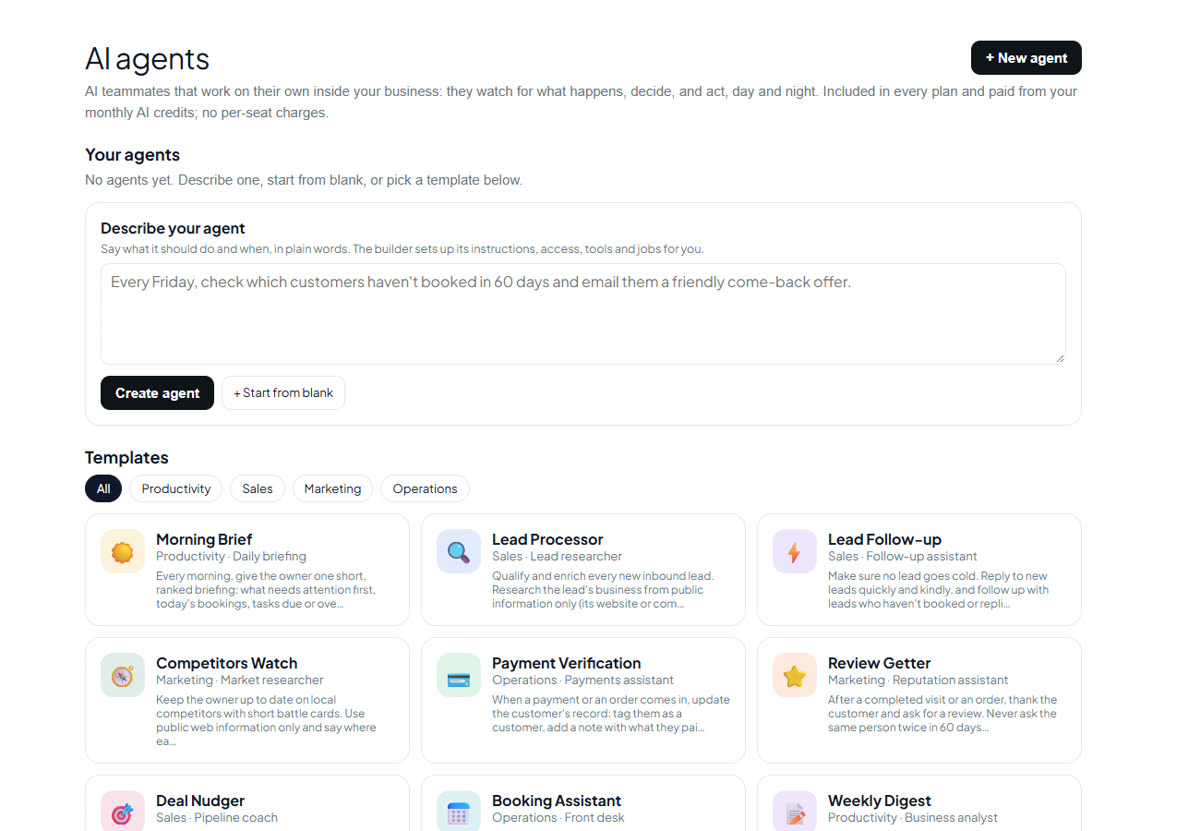
- AI teammates that work on their own inside your business: they watch for what happens, decide, and act, day and night, using your CRM, bookings, orders, websites and email.
- How to use it
- Open AI agents (first under Sell & grow).
- Create an agent: describe it in a sentence and press Create agent, press Start from blank, or pick a template.
- Give it a name, a job title, an avatar and a color, then press Onboard. It goes live straight away.
- In the builder, use Build to set it up by chatting (“also email me when a lead scores above 80”), or Ask to give it a task now.
- Fine-tune it on the right: Profile (instructions, knowledge and access, files, tools, guardrails, skills, AI model), Jobs (each with its own trigger and instructions) and Channels.
- Follow every run in Chats and activity on the left.
- What's included
- 10 templates: Morning Brief, Lead Processor, Lead Follow-up, Competitors Watch, Payment Verification, Review Getter, Deal Nudger, Booking Assistant, Weekly Digest and Social Post Writer
- Knowledge and access: CRM, bookings, store and orders, websites, email marketing and your business profile, each set to no access, read, or read and edit; plus files (text, CSV, Markdown, JSON)
- Tools: web search and web browsing (read); message you, update the CRM, email customers and text customers (write). Write tools act for you, so they stay off until you switch them on
- Guardrails: most emails a day, only message contacts with a tag, where your reports go
- Jobs triggered by events (form sent, new contact, booking, booking status, order, payment, new deal, stage change, deal won or lost, customer text, task due, stuck deal) or daily, weekly or monthly; “When asked” is always on
- Channels: text your agent from your own phone on your business texting number, or chat on the workspace app
- Each run shows its date, what started it, the apps it used, each step, the output and the credits; a failed run shows What went wrong and a suggested fix, with an alert on the page and an email
- Memory across runs (switch it off any time), Pause and Go live, Duplicate, and Undo for every change to the setup
- Always-on helpers under your agents: the morning report, the AI receptionist, booking reminders, lead follow-up, review requests, deal nudges and no-show recovery, each with one switch and no setup
- Credits or costs
- Included in every paid plan, from $9.92 a month, with no per-seat charges. Each run uses your monthly AI credits: a simple run is usually under 100 credits, and a web search adds about 500. The always-on helpers use no credits.
- Common issues
- “A write tool is waiting for your review”: open Profile → Tools and switch it on; templates and the builder only suggest write tools.
- A job didn’t run: check that the agent is live and the job is on; scheduled jobs run in the hour after their time, in your business’s time zone.
- A run failed: open it in Chats and activity and follow the suggested fix (usually switching on an access or a tool, or adding credits).
- Texting my agent doesn’t answer: connect texting in Conversations, switch on the Text message channel, and enter the phone you text from.
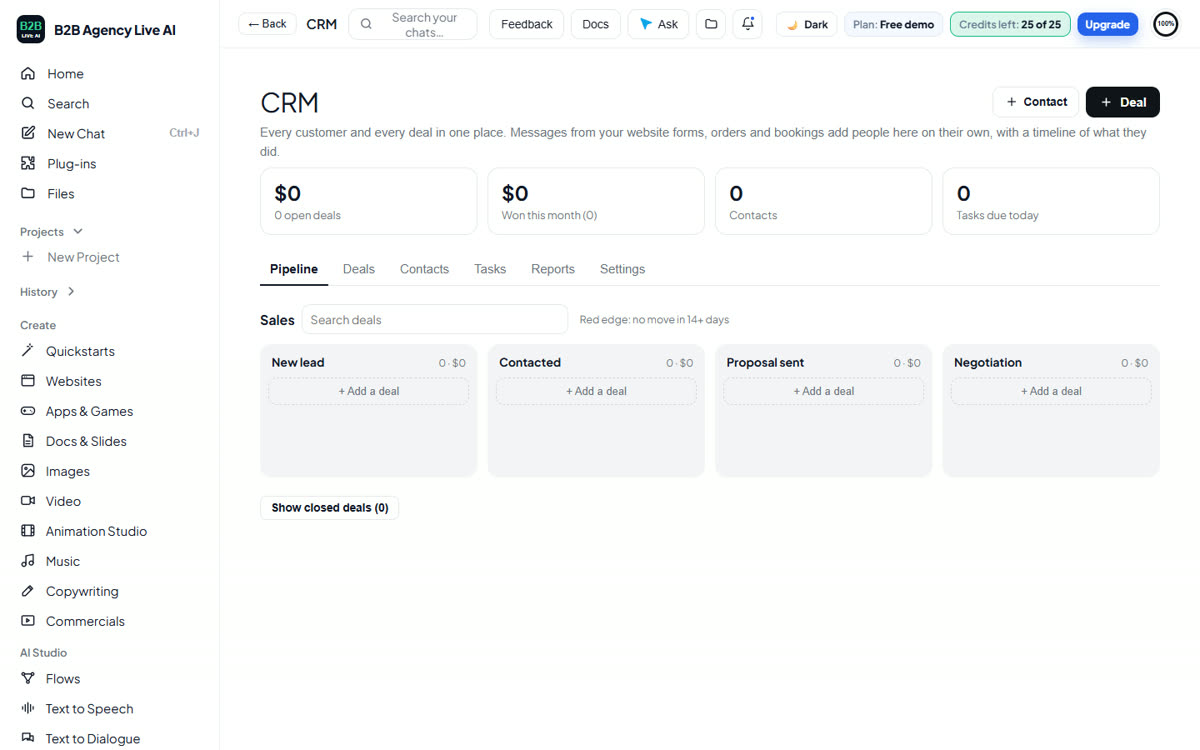
CRM
- What it does
- Every customer and every deal in one place: a pipeline, contacts, tasks and reports.
- How to use it
- Open CRM (first under Sell & grow).
- Pipeline: deals as cards in stages; drag a card to move it.
- Open a card to set its value, contact, source, close date, custom fields and notes, add tasks, and mark it Won, Lost (with a reason) or Abandoned.
- Deals and Contacts: lists you can filter, sort, change in bulk, import from and export to a spreadsheet; save filters as smart lists.
- Settings: name your pipelines and stages, sources, lost reasons and custom fields.
- What's included
- Cards with no move in 14 days get a red edge
- Website forms, bookings and orders add people on their own; Import my customers brings in everyone you already have
- Tasks with a morning email when something is due
- Reports: funnel, win rate, time to win, time per stage, sources, lost reasons, stuck deals
- Pipeline templates for services, real estate, agencies and events
- AI summary: open a contact and press Summarize for a few sentences on everything you have with them (notes, timeline, deals, tasks and texts), where things stand and a suggested next step. Add it to their timeline as a note if you like.
- Meeting prep: the afternoon before a day with bookings, you get one email with a short brief on each person: who they are, their history with you, open deals and tasks, and a few things worth bringing up. Turn it off, or send it now, in CRM › Settings.
- Find duplicates (Contacts): people who share an email, phone or full name, grouped. Tick the one to keep and the others are merged into it: notes, timeline, tags, deals, tasks and text conversations move over, and opt-outs are kept. You can also select contacts and press Merge.
- Audit log (a CRM tab): every merge, undo, import and deletion in your CRM, with who did it and when, newest first. Merges have an Undo merge button for 30 days.
- What a merge keeps: the kept contact’s own name, email, phone, company and custom field values are never overwritten; a blank field is filled from the others. Tags are combined. If any of them opted out of emails, texts or everything, the kept contact stays opted out.
- Merges and automations: a workflow or sequence the merged contacts were in follows the contact you keep. A run carries on from the same step and the same wait time. If the kept contact is already in that workflow, its own run carries on and the duplicate’s run ends, so nobody gets the same email or text twice. Each moved or ended run gets a “Contact merged” line in its log, and the contact’s timeline says how many runs carried on or ended. A merge starts workflows that use the Contact Merged trigger (once, for the contact kept). It does not start Contact Created, Contact Changed, Contact Tag or Contact DND workflows.
- Credits or costs
- Included in every paid plan, from $9.92 a month. AI summaries and meeting prep briefs use a very small amount of your plan’s monthly AI allowance; when the allowance is used up, the brief still arrives with the facts, without the AI part.
- Common issues
- An import put details in the wrong place: use a spreadsheet with a header row (name, email, phone…).
- Can’t move a deal to a stage: the stage may belong to another pipeline.
- Summarize says there isn’t enough history: add a note, a deal or a task for the person first.
- No prep email arrived: it only comes when you have bookings the next day (from your booking page or your website’s booking form). Check that it is on in CRM › Settings.
- Two different people with the same name: groups that match on the name only are marked “Check first”. Don’t merge them; nothing is merged until you press the button.
- Undo a merge: open CRM › Audit log and press Undo merge (for 30 days). The merged contacts come back as separate contacts with their own notes, timeline, deals, tasks, texts and automations; runs that were ended by the merge carry on again. Anything added to the kept contact after the merge stays on it. Tags or fields added by a Contact Merged workflow aren’t taken away.
Sequences
- What it does
- Follows up with leads step by step so nobody is forgotten: for example an email today, another in two days, a reminder to call on day four and a last check-in a week later. It stops for a person as soon as they text back, book or buy.
- How to use it
- Open Sequences (under Sell & grow).
- Start from a ready-made sequence (new lead, quote follow-up, win back past customers) or from scratch.
- Each step is an automatic email, an automatic text, a call to make, an email to write yourself, or a to-do, after a wait of some days. Calls, emails to write and to-dos appear on your task list (and in your morning email) the day they are due.
- Choose the days and hours steps go out, and when to stop for a person.
- Press Send me a test: every email comes to you with a contact’s details filled in, and the waits are skipped.
- Turn it on, then press Add people, or add them from the CRM (a contact’s Add to sequence button, or select several and use the bulk bar).
- What’s included
- Up to 15 steps, waits of 0 to 90 days
- Stops when they text you back, book, order or pay, their deal is won, or (if you choose) they click a link
- When someone answers by email, press Replied next to their name to stop it for them
- See where each person is and when their next step goes out; stop anyone at any time
- Every email and text sent shows on the contact’s timeline; do-not-contact and opt-outs are always respected
- Credits or costs
- Included in every paid plan. Emails count toward your monthly email sending; texts need texting connected (Conversations).
- Common issues
- Can’t add people: turn the sequence on first.
- Someone was skipped: they are already in that sequence, or they opted out of emails or texts.
- An email waited until the morning: it is outside the days and hours you chose; it goes out at the next allowed time.
- I changed the steps: people already in it carry on from their current step; a step you removed ends the sequence for anyone waiting on it.
Workflows
- What it does
- Automate your follow-ups: when something happens, a workflow sends the emails and texts, adds tags and tasks, and moves deals for you.
- How to use it
- Open Workflows (under Sell & grow).
- Start from a template (new lead follow-up, booking thank-you and review, won deal onboarding, stuck deal nudge, birthday wish, order thank-you, no-show recovery, welcome) or from scratch.
- Add one or more triggers, then actions with the + buttons.
- Press Test to run it for one contact (every email goes to you, waits skipped), then Publish.
- What's included
- Triggers: Contact Created, Contact Changed, Contact Tag, Contact DND, Birthday Reminder, Custom Date Reminder, Note Added, Task Added, Task Reminder, Task Completed, Form Submitted, Email Events, Inbound Webhook, Scheduler, Customer Booked Appointment, Appointment Status, Opportunity Created, Pipeline Stage Changed, Opportunity Status Changed, Stale Opportunities, Order Submitted, Payment Received, Invoice, Customer Replied and Contact Merged
- Contacts brought in with Import (a spreadsheet or another platform) don’t start Contact Created workflows, so a move doesn’t send a burst of welcome emails. Add imported people to a workflow or sequence yourself when you’re ready.
- Actions: Send Email, Send SMS, Send Internal Notification, Send Review Request, Add or Remove Contact Tag, Update Contact Field, Enable/Disable DND, Add Note, Add Task, Create/Update Opportunity, Remove Opportunity, Webhook, If/Else, Wait, Goal Event, Split (A/B), Go To, Add to Workflow, Remove from Workflow and Math Operation
- Merge fields like
{{contact.first_name}} - Settings for re-entry, sending hours, time zone and sender
- Enrollment history and execution logs
- Credits or costs
- Included in every paid plan, from $9.92 a month. Emails count toward your monthly emails; texts are paid to your texting provider.
- Common issues
- Nothing happens: the workflow must be Published, not Draft.
- A contact got no email: people marked do not contact or no emails are skipped, and the monthly email limit may be used up.
- A step failed: emails, texts, notifications and webhooks that fail for a passing reason are tried again after 5 minutes, 30 minutes and 2 hours. The run log shows each try; after the last one the workflow carries on with the next step.
- Test emails went to me: that’s what Test does; Publish sends to real contacts.
- Moving from another platform with live automations: pause the automations there first, import your contacts, merge duplicates, then publish your workflows here and add people to them. That way nobody gets messages from both platforms.
Funnels
- What it does
- Step-by-step pages that turn visitors into leads and buyers, with order bumps, one-click upsells and split tests.
- How to use it
- Open Funnels (under Sell & grow) and start from a template: lead magnet, product sale (sales page → order form → one-click upsell → downsell → thank-you), tripwire, webinar registration, book a call or two-step order.
- Press Write with AI and describe your offer; edit any step while the preview updates.
- Add your products (one-time, monthly or yearly) in Products.
- Connect Stripe and publish.
- What's included
- One- or two-step order forms and an order bump
- A one-click upsell: one press charges the card they just used
- Split tests for any step
- Opt-ins and buyers go into your CRM, start workflows and can join your email list
- Stats per step and version, and an Orders list
- Tracking code (Facebook Pixel, Google tag)
- Funnels live at
b2blive.net/f/your-address/
- Credits or costs
- Included in every paid plan, from $9.92 a month. 0% from us; Stripe’s card fees apply. Write with AI uses credits.
- Common issues
- Paid steps don’t work: connect your Stripe account.
- “That address is taken”: choose another funnel address.
- Write with AI made up nothing: it never invents testimonials or numbers, so add your own.
Conversations and your AI employee
- What it does
- Text your customers from your own business number, and let your AI employee answer texts and website chat and book appointments.
- How to use it
- Open Conversations → Settings and connect your Twilio account: create one at twilio.com, buy a number with SMS, register it for business texting if you’re in the US (A2P 10DLC), then paste your Account SID, Auth Token and number.
- Switch on the AI employee in Conversations → AI employee (texts) and with the AI receptionist when you publish (website chat).
- Try it right there before customers do; pause it for one person from their conversation.
- What's included
- An inbox, with texts also in your CRM
- Workflows with Send SMS, Customer Replied and Stop on response
- STOP turns on “no texts” for that person (emails still go); START opts them back in
- The AI employee finds free times and books appointments when online booking is on, takes messages when it can’t help, never invents prices or promises, and never says which AI it is
- Credits or costs
- Texts cost about a cent each, paid to Twilio. AI employee answers use your monthly credits.
- Common issues
- Texts fail in the US: finish A2P 10DLC registration with Twilio.
- The AI employee doesn’t book: turn on online booking first.
- Someone stopped getting texts: they replied STOP; they can reply START.
Email marketing
- What it does
- Newsletters and campaigns to people who agreed to hear from you.
- How to use it
- Open Email marketing (under Sell & grow).
- In Contacts, paste emails, upload a CSV, or press Import my customers.
- Share your Signup form; new subscribers confirm by email and get your welcome email.
- In Campaigns, pick a template, write it or use Write with AI, add a picture and a button, preview, send a test, then Send now or schedule it.
- What's included
- Templates: newsletter, sale, new product, event, personal note
- Your business name, mailing address and one-click unsubscribe on every email
- Opens and clicks for every campaign
- Credits or costs
- Emails a month: Starter 2,500, Builder 10,000, Pro 25,000, Max 60,000. Write with AI uses credits.
- Common issues
- Can’t send: the month’s emails may be used up; they refresh on the 1st.
- A campaign was already sent: duplicate it to send it again.
- Low opens: only add people who agreed to hear from you.
Blog
- What it does
- Posts on your own website at /blog, in your site’s design.
- How to use it
- Open Blog, pick a published website and press New post.
- Write it yourself or let Write with AI draft it from one sentence.
- Add a cover picture, a summary and tags, then Save draft or Publish.
- What's included
- A Blog link in your menu, an RSS feed and Google article data
- Posts added to your sitemap
- Credits or costs
- Included in every paid plan, from $9.92 a month. Write with AI and AI pictures use credits.
- Common issues
- No website to pick: publish a website first.
- “The post looks empty”: write at least a few sentences.
Languages
- What it does
- Your website in other languages, translated by the AI with your design kept.
- How to use it
- Open Languages, pick a website and choose a language: Spanish, French, Chinese, Arabic, Swahili and about 45 more.
- What's included
- Every page translated: words, picture descriptions, form hints, page titles and Google descriptions
- Each language at its own address (like
yoursite/es/) with a language menu and the tags Google uses - A “view in your language” suggestion for visitors
- Right-to-left display for Arabic and Hebrew
- Translations update themselves within the hour after you change your site (or press Update translations)
- Credits or costs
- About 40 credits per page per language. Up to 10 extra languages per website.
- Common issues
- A change isn’t translated yet: wait up to an hour or press Update translations.
Analytics
- What it does
- How many people visit each website, where they come from and what they do.
- How to use it
- Open Analytics, pick a website and a range: today, 7, 30 or 90 days.
- What's included
- Visitors, page views, pages per visitor, bounce rate, time on a page and conversion rate, each compared with the period before
- A daily chart (or by hour for today) with a table view, and who is on your site right now
- Top pages, channels, referring websites, countries and cities, devices and browsers, busiest hours
- Campaigns from links tagged with
utm_sourceandutm_campaign - Results: form messages, bookings, orders, AI receptionist questions and sales
- Credits or costs
- Included in every paid plan, from $9.92 a month.
- Common issues
- No numbers yet: analytics count from when a website is published.
- Privacy: counting uses no cookies and never stores a visitor’s IP address; each visitor is a one-way code that changes every day. Whether your site needs a privacy or cookie notice depends on your country and on anything else you add to it.
Client accounts (agencies)
- What it does
- Run each client in an account of its own: their websites, CRM, contacts, email lists, bookings, store, funnels and chats stay separate.
- How to use it
- Open Clients (under Account) and press Add client.
- Pick the client with the button next to the page title to work inside their account; pick My agency to come back.
- Use Copy setup to start a client from one you’ve already set up.
- What's included
- Pro: 10 clients, Max: 50
- Copy setup: business profile, CRM pipelines and fields, workflows (as drafts), booking setup, menu, email settings and campaigns (as drafts); never contacts, deals, orders or sends
- Emails for a client go to the client’s business email, or to you
- Credits or costs
- Included in Pro and Max. Your plan’s AI credits, daily limits and websites are shared across your clients.
- Common issues
- Can’t add a client: client accounts need Pro or Max, and all your slots may be in use.
- Removed a client by mistake: email support within 30 days.
- The Clients page says you’re inside a client account: press Back to my agency to manage clients.
Your brand for clients (white-label)
- What it does
- On the Max plan, your clients can sign in to their own account and see your agency’s name, logo, colour and support email instead of ours. They work only in their own account and never see plans, billing, your other clients or our name in the menu.
- How to use it
- Open Account › Clients.
- Under Your brand, enter your agency name and support email, pick your colour, upload a logo (PNG, JPG or WebP under 200 KB) and press Save brand.
- In the client list, press Invite to sign in next to a client and enter the email they will use.
- Tell your client to sign in at b2bagencyliveai.com/workspace with that email. Each sign-in link arrives by email with your agency name on it.
- To stop someone signing in, press their email next to the client and confirm. The account and its websites stay as they are.
- What's included
- Your name, logo, colour and support email on the client’s workspace and on their sign-in email
- One sign-in email per client account; an email that already has its own paid plan can’t be used
- AI credits and websites still come from your plan, as with every client account
- Credits or costs
- Included with Max. We take no cut of what you charge your clients.
- Common issues
- The client sees our brand: your brand isn’t saved yet, or your plan is below Max.
- The client can’t sign in: check the email shown next to the client matches the one they type.
Sell your own plans to clients
- What it does
- On the Max plan, sell your own monthly plans under your brand. Clients pay you directly through your own Stripe account and we take no cut. When someone pays, their client account is made for them, your snapshot is loaded, and they get a sign-in link with your name on it.
- How to use it
- Connect your Stripe account on the Sell page.
- Save your brand under Account › Clients › Your brand.
- Under Plans you sell, add up to 5 plans: name, monthly price, what’s included, and a snapshot to load (optional). Press Save plans.
- Copy your sign-up page link and share it, or put it on your website.
- New clients appear in your client list with “Pays you” and the plan. You also get an email for each one.
- What's included
- A sign-up page with only your name, logo and colour
- Payment straight to your Stripe account; refunds and cancellations are handled in your own Stripe Dashboard
- If a client’s subscription ends, their sign-in pauses; their account and websites stay until you remove them
- Credits or costs
- Included with Max. We take 0% of what you charge. Stripe’s own card fees apply. Your clients use your plan’s AI credits and website count.
- Common issues
- The page says “Not available right now”: connect Stripe and finish its setup, save your brand, check you have a free client slot (50 on Max).
- “That email already has its own account”: the client should use a different email, or you can add them by hand and invite them.
Wholesale AI credit for agencies
- What it does
- On the Max plan, buy extra AI credit in bulk at 30%, 40% or 50% off. It is shared by you and every client account, is used after your plan's monthly AI credits run out, and never expires.
- How to use it
- Open Account › Clients.
- Under Wholesale AI credit, pick a pack: $50 (30% off), $100 (40% off) or $250 (50% off). Each card shows how many credits you get.
- Press Buy and pay with Stripe. The credits are added as soon as payment goes through, and the box shows your extra credits.
- What's included
- Credits for every client account under your agency, with no need to buy for each client
- Used only after the plan's monthly credits are spent
- No expiry
- Credits or costs
- Max plan only. Packs are a one-time payment; nothing renews. Clients who sign in under your brand can't buy wholesale packs themselves.
- Common issues
- I don't see the box: it's only on Max, and only in your own agency account (not inside a client account).
Moving from another platform
- What it does
- Brings your contacts and deals across from another CRM or marketing platform's CSV exports. Common column names are recognised, opt-outs are kept (do not contact, no emails, no texts), re-imports don't create duplicates, and the old contact id is kept for matching. Open tasks (CRM › Tasks › Import CSV) and upcoming appointments (Online booking › Bring appointments over) can be imported too.
- How to use it
- Create your custom fields, pipelines and stages in CRM › Settings with the same names as your export.
- Import a small test file in CRM › Contacts › Import and read the report (added, updated, skipped rows and why, columns not brought in).
- Import everything, then deals in CRM › Deals › Import.
- Rebuild workflows from the templates, test, then publish.
- What's included
- The full guide, item by item, with limits and a safe switch-over plan: Moving from another platform.
- Credits or costs
- Importing is free. Workflows, history and call recordings are not imported; see the guide.
Snapshots
- What it does
- Save one account’s setup as a template and load it into any client, now or later, so a setup that works for one salon or one restaurant is ready for the next in a minute.
- How to use it
- Open Account › Clients.
- Under Snapshots, pick the account to save from, give it a name, tick what to include and press Save snapshot.
- On a saved snapshot, pick the client to load it into and choose Keep what they already have or Replace what they already have, then press Load.
- Open the client, check the drafts, connect their own Stripe, domain and phone, and switch things on.
- What's included
- Business profile (as a starting point), CRM pipelines, stages and custom fields, workflows, online booking and ordering setup, email sender settings and campaigns, funnels, AI agents and the most recent website
- Everything that could act on its own arrives safe: workflows, funnels and campaigns as drafts, agents paused (without memory), booking and ordering switched off
- Never included: contacts, deals, tasks, orders, bookings, messages, email lists, payments or Stripe, domains and phone numbers
- Up to 20 snapshots; a snapshot is frozen when you save it, so later changes to the source don’t change it
- Credits or costs
- Free on the Pro and Max plans.
- Common issues
- Something was “kept”: the client already had that part and you chose Keep. Load again with Replace for that part.
- A funnel or agent isn’t running: they arrive as drafts or paused on purpose; switch them on in the client’s account.
Images, video, music, voice and copy
The AI creation tools
- What it does
- Make pictures, video clips, music, voice-overs and marketing copy from a description.
- How to use it
- Open the tool in the side menu (Images, Video, Music, Text to Speech or Copywriting).
- Start from an example or describe what you want, pick the options and press Generate.
- Find everything in the tool’s History.
- What's included
- Images: 125 styles; Video: 105 shot ideas or animate a photo; Music: a free library plus new tracks; Text to Speech: standard and premium voices and your own; Copywriting: ads, emails, product descriptions, captions and texts in three versions
- Credits or costs
- Each tool shows its credit cost next to Generate. Daily limits grow with your plan: images 3 / 6 / 12 / 25 a day, video 15 s / 30 s / 60 s / 2 min, music 2 / 3 / 5 / 8, voice-overs 5 / 10 / 20 / 40 (Starter / Builder / Pro / Max).
- Common issues
- “You’ve reached today’s limit”: limits reset at midnight New York time, or move up a plan.
- A video is still making: video takes a few minutes; it appears in History when ready.
| Tool | How to use it |
|---|---|
| Images | Pick one of 125 styles (photo, 3D, illustration, art, design) to start from its example, or describe the picture. Choose a shape, a style and the lighting, press the arrow. Results are in History. |
| Video | Pick one of 105 shot ideas or describe a shot, choose the look and camera move, the shape and the length, or animate a photo. Ready in a few minutes in History. |
| Music | Play and download tracks from the free music library (filter by genre, instrument and mood), or describe the music and pick a genre: a 30-second instrumental track arrives in about a minute. |
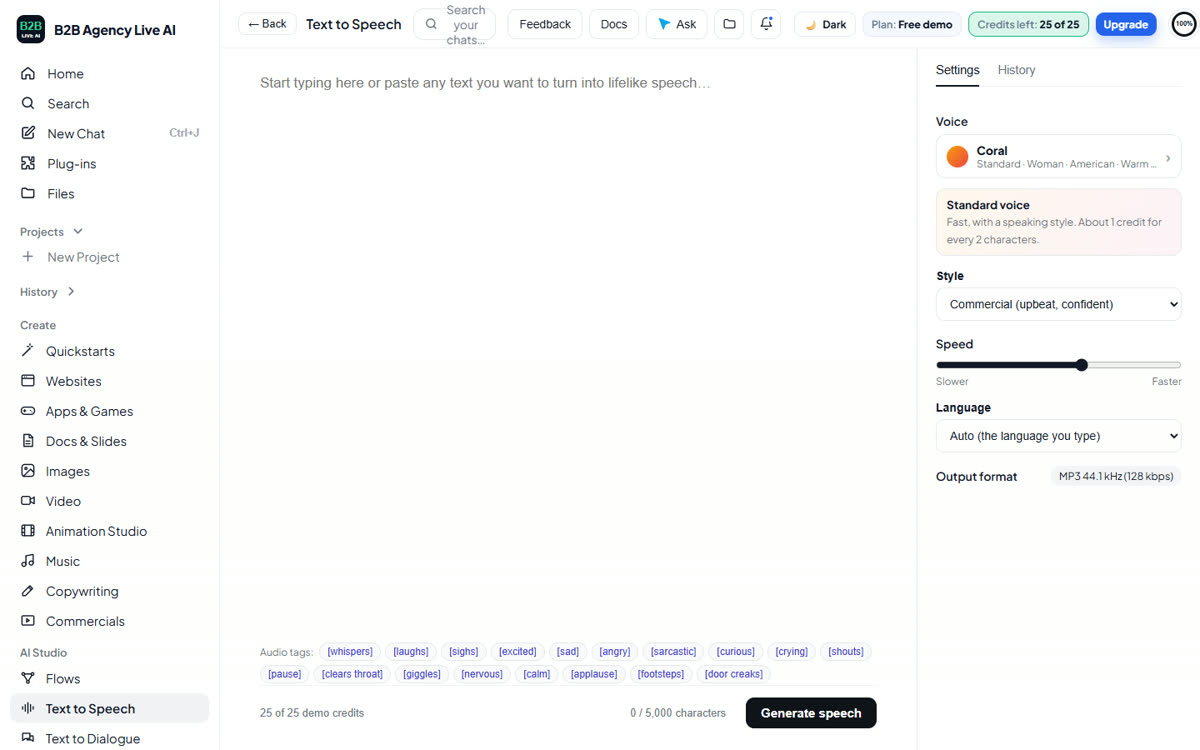
| Text to Speech | Type or paste up to 5,000 characters. Press the voice in Settings to browse every voice with a sample: standard voices with a speaking style, premium voices with speed, stability, similarity, style and speaker boost, voices you saved from the library, and your own voice. Press Generate speech; play or download it; everything is in History. |
| Copywriting | Pick ad, email, product description, caption or text message and a tone. You get three versions. |
Quickstarts
Quickstarts
- What it does
- Over 100 ready-made templates that make a finished piece from a photo and a few words.
- How to use it
- Open Quickstarts on Home or in the side menu.
- Search or tap a category, open a template, fill in the numbered steps and press Generate.
- What's included
- Categories: Product & store, Brand & design, Social & ads, Photo & edit, Food & drink, Homes & places, Voice & audio, Video, Print & events, Writing and By business
- Examples shows what each template makes
- Credits or costs
- Uses the credits and daily limits of the tools it runs (images, video, voice, sound effects).
- Common issues
- Can’t generate: today’s limit for that tool may be reached.
Flows
Flows
- What it does
- Runs several tools one after another from one description.
- How to use it
- Open Flows, pick one, describe your business and press Run the flow.
- What's included
- Social ad kit (copy, an image and a sound), Explainer video kit (script, voice-over and music), Product showcase video, Podcast intro
- Each result is also saved in that tool’s History
- Credits or costs
- Uses the credits of each tool it runs.
- Common issues
- One step failed: run that tool on its own from its page.
AI Studio and Animation Studio
AI Studio tools
- What it does
- Professional voice, sound and video tools: Text to Speech, Text to Dialogue, Sound Effects, Voices, Voice Changer, Voice Isolator, Speech to Text, Meeting notes, Subtitles, Dubbing, Music, Audiobooks & Podcasts and Talking Avatars.
- How to use it
- Open the tool under AI Studio in the side menu.
- Type your text or upload a file (up to 500 MB; many tools also take a YouTube, TikTok or file link).
- Pick the voice and settings and press Generate; long jobs run in the background and appear in History.
- What's included
- Every tool and its settings are listed in the table below
- Professional Voice Clone on the Max plan
- Credits or costs
- Each tool shows its credit cost before you start. A job that fails gives your credits back and says why. Text to Speech’s Flash model is half price, and Regenerate is free twice while nothing changes.
- Common issues
- A big upload is slow: big files upload in parts; keep the page open until it says it’s uploaded.
- Voice cloning: only clone voices of yourself, someone who agreed, or a made-up character.
- Daily limit reached: AI Studio limits grow with your plan.
Every AI Studio tool and its settings
| Tool | What it does | Settings |
|---|---|---|
| Text to Speech | Up to 10,000 characters spoken by any voice. Premium voices use one of five models: Expressive, Expressive Turbo, Dramatic, Long-form or Flash (half price). Audio tags like [whispers], [laughs] or [excited] change the delivery. Regenerate twice for free while nothing changes. | Voice, model, speed, stability, similarity, style exaggeration, speaker boost, language, how numbers and dates are read, seed, audio effects (phone, radio and other filters, rooms, background sounds, distance from the mic, stereo position), output format (MP3 128 or 192 kbps, WAV, Opus). |
| Text to Dialogue | A conversation in one natural recording: a voice and a line for every turn, up to 10 voices and 10,000 characters, with audio tags, dashes for interruptions and "…" for trailing off. | Model (Dramatic or Expressive), stability, seed, audio effects for the whole dialogue, output format. |
| Sound Effects | A free library of 245 ready-made sounds, plus any sound you describe, up to 30 seconds. | Length (auto or 1 to 30 seconds), seamless loop, how closely it follows your words. |
| Voices | Explore ready voices and a library of thousands (search, language, gender, use), or find voices like a recording. Create Voice: Voice Design (describe a voice, get three versions, save one), Instant Voice Clone (1 to 25 recordings, 1–2 minutes in total), Professional Voice Clone (Max plan: 30+ minutes of recordings, speaker separation, a short read-aloud check that it is your voice, then a few hours of training) and Remix (change the accent, gender, style or pace of one of your voices at Low, Medium, High or Max strength). My Voices: name, description and tags for each. | Voice Design: model, loudness, guidance, seed, a reference recording. Clones: language, accent, gender, age, description, background noise removal. |
| Voice Changer | Your recording (up to 5 minutes), re-spoken in another voice with the same words, timing and emotion. | Voice, model (multilingual or English), stability, similarity, style exaggeration, background noise removal, speaker boost, seed. |
| Voice Isolator | Removes background noise, music and echo from audio or video, up to 1 hour. | None needed. |
| Speech to Text | A transcript with speaker labels and the time of every line, from a file (up to 10 hours) or a link. Correct any line and rename the speakers, then export as text, subtitles (SRT, VTT), Word, PDF, a web page or JSON with word timings. | Language (or detect), speaker labels and number of speakers (up to 32), sound tags (laughter, applause), filler words removed, key terms, sensitive details (personal, health, card details, offensive language). |
| Meeting notes | Upload or record a meeting (or open any transcript) and get a summary, decisions, to-dos and open questions, written only from what was said. Save them to a CRM contact in one click: the notes go on their timeline and each ticked to-do becomes a task. | The same settings as Speech to Text. Name the speakers first so the to-dos say who does what. |
| Subtitles | Already have the script? The recording plus its exact words gives subtitles timed to the word (SRT, VTT, text, JSON). | None needed. |
| Dubbing | A video or audio file (or a link) dubbed into one or more of 60+ languages at once, including regional versions (Mexican Spanish, Brazilian Portuguese, Canadian French and more), in the same voices and timing with the music kept. Each language arrives as a dubbed video, the dubbed sound and translated subtitles. Classic dubbing adds a part of the video, the number of speakers, background on or off, library voices and bleeping. | Source language, languages to dub into, speaker similarity (0–10), key terms. |
| Music | Songs with vocals or instrumentals up to 5 minutes, from a description or your own lyrics, in 45 ready-made styles or any style. The song editor shows every section (words, length, styles to include and leave out); keep the sections you like and make the rest new, or edit with words ("make the chorus bigger"). Also: stems (vocals, drums, bass…) and music made for a video, with sound effects. | Length, vocals, style, model, variants (up to 3), seed, audio reference. |
| Audiobooks & Podcasts | Create a project in four steps (Upload, Formatting, Voice, Pronunciations) from a document (EPUB, Word, PDF, TXT, HTML), a web page or pasted text, with chapters found for you. Choose Single cast (one narrator) or Multi cast: the book is read first and every character gets their own voice that fits their gender and age, while the narrator reads the rest. Your Bookshelf has search, Type and Status filters and a grid or list view, plus Resources with tips. Each paragraph has a voice and its status; generate one paragraph (two free regenerations) or whole chapters in the background, listen to earlier takes and restore them, lock paragraphs, insert pauses, split a paragraph to give part of it another voice, change voice settings per paragraph, undo and redo, play the chapter. Pronunciation rules, replace a voice everywhere, and export a chapter, the whole book or a ZIP of chapters with the title, author and ISBN in the files (volume normalization optional). Share a link where listeners leave comments at a moment in a chapter. Create a podcast turns a document or link into a conversation between a host and a guest, or a one-voice bulletin, short, default or long, in any language. | Narrator and heading voices, model, quality, voice settings, metadata, normalization. |
| Talking Avatars | A photo that speaks your script (up to 600 characters); ready in a few minutes. | Voice; permission for the photo. |
Animation Studio
- What it does
- Turns an idea into an animated film: script, characters, backgrounds, storyboard, animation, sound and the finished MP4.
- How to use it
- Open Animation Studio (under Create) and type your story.
- Pick a template (story video, vertical short, music video, bedtime story, product story, explainer, movie trailer, long episode of 5 to 20 minutes, character design, scene design or storyboard), the shape (16:9 or 9:16), the length, the quality (1080p, 2K or 4K) and one of 64 styles.
- Choose Make it for me (the AI crew does every step and emails you the film) or Step by step to check the script, style, character sheets, backgrounds, storyboard, animation and sound before the film is joined.
- What's included
- Character sheets from words or a photo, saved to My assets and reused in other films
- Shots of 6 to 20 seconds with their own sound effects and spoken lines
- A music track (soft, background or loud) and studio voices, mixed to normal web loudness
- Long episodes from many short shots with the same characters
- The film as one MP4, and every shot on its own
- Credits or costs
- Animation seconds each month: Starter 30 s, Builder 60 s, Pro 150 s, Max 300 s (yearly: 30, 60, 120, 250). One second of 1080p uses 1 second; a character sheet or background 0.5, a storyboard frame 1, a music track 3; 2K counts double and 4K four times. Packs never expire: 1 minute $14.99, 3 minutes $39.99, 10 minutes $129.99. Free accounts can use packs too.
- Common issues
- Not enough seconds: buy a pack or wait for next month’s seconds.
- A shot looks wrong: change its motion prompt, trim it and re-animate just that shot.
Commercials
TV-style commercials
- What it does
- A 1:30 commercial for your business with voice-over, music, footage that fits your business and your brand colors.
- How to use it
- Open Commercials and tell us about your business.
- Pick a male or female voice-over and order.
- What's included
- Delivered by email within 10 hours, ready for TV, the web and social. Allow up to 10 hours because every commercial is checked for quality before it’s sent.
- Credits or costs
- $9.99, or $4.99 for subscribers. Pro and Max include one free commercial each calendar month.
- Common issues
- Not delivered in 10 hours: you’re refunded automatically.
- Something is wrong in it: write to us and we’ll fix it.
Plans and billing
| Free | Starter | Builder | Pro | Max | |
|---|---|---|---|---|---|
| Monthly price | $0 | $9.92 | $19 | $40 | $80 |
| Yearly price (25% off) | — | $89 | $171 | $360 | $720 |
| AI credits a month | 25 demo credits | 18,923 | 38,990 | 85,400 | 173,800 |
| AI credits a month on yearly | — | 16,141 | 31,243 | 66,050 | 132,350 |
| Websites online | 1, with our link | 1 | 3 | 10 | 50 |
| Client accounts | — | — | — | 10 | 50 |
| Daily AI limits | — | Standard | 2× | 4× | 8× |
| “Made with” link on your sites | Shown | Shown | Shown | Not shown | Not shown |
| Free commercial every month | — | — | — | ✓ | ✓ |
| Booking, ordering, payments, CRM, email, workflows, funnels, AI Studio | See every tool | ✓ | ✓ | ✓ | ✓ |
| Our fee on your sales | — | 0% | 0% | 0% | 0% |
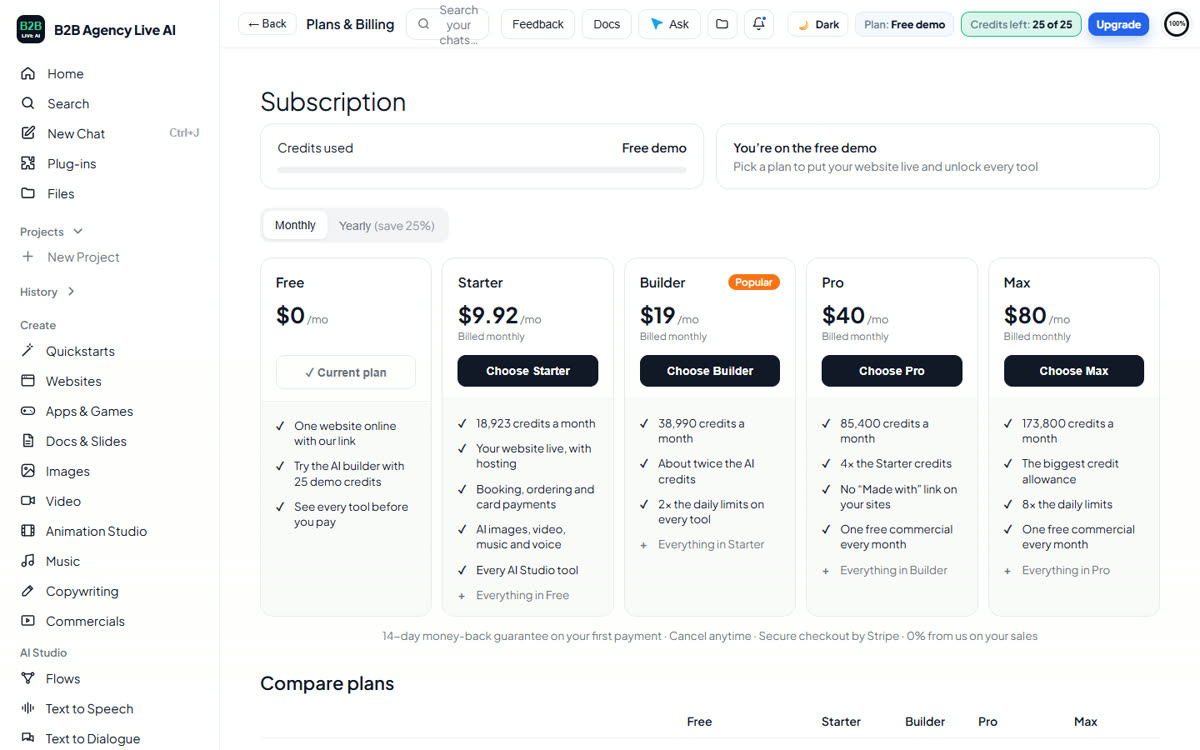
Plans & Billing shows the Free plan next to the paid ones, and Compare plans lists what each includes side by side: price, credits, websites online, daily AI limits, the "Made with" link and the business tools.
Upgrade
- Open Plans & Billing.
- Pick Monthly or Yearly, then press Upgrade on a higher plan (or Switch to yearly on your own plan).
- The confirmation shows exactly what is charged today, with the unused part of your current plan already taken off.
- Press Confirm. Your new credits are ready right away. If your card is declined, your plan stays as it is.
Downgrade
- Press Billing, then choose the plan in Modify plan › Downgrade (plans below yours show “✓ Included” on the plan cards).
- Nothing is charged. You keep your current plan and its credits until your renewal date, then the lower plan starts. Switching from yearly to monthly works the same way.
- Changed your mind? Press Cancel downgrade in Billing any time before that date.
The Billing window
Press Billing to see your plan, credits remaining, plan cost, next billing date and next payment amount; switch to yearly; downgrade or cancel (and Resume subscription if you change your mind); add credits or turn on auto top-up (at most 3 times a month); set usage notifications; update your card and billing information; and view invoices. On the free demo, Billing shows the same rows with your demo credits, plans to upgrade to, and AI packs under Add credits.
Usage notifications: in Billing, press Manage notifications, turn them on and pick when to hear from us: at 50%, 75%, 90% or 100% of this month’s credits. You get one email per level each month, with a link to add credits or upgrade.
14-day money-back guarantee: within 14 days of your first payment, press Cancel and refund in the Billing window for a full refund. After that, cancel any time: your plan stays active until the end of the period you paid for. See the refund policy.
Refer, earn and affiliates
Refer & earn
- What it does
- Share your link: when someone subscribes through it, you get a free month of your plan and they get extra AI credits.
- How to use it
- Open Refer & earn and copy your link.
- What's included
- No limit on referrals
- Credits or costs
- Free.
- Common issues
- No free month yet: it’s added once their first payment goes through.
Affiliate program
- What it does
- Earn 40% of every plan payment from the businesses you refer, every month or year they pay.
- How to use it
- Open Affiliate program (under Account) and join in one click.
- Share your link (
b2bagencyliveai.com/?via=YOURCODE, remembered for 90 days) or the ready-to-post text. - Press Set up payouts once to connect your own Stripe account.
- What's included
- A dashboard with clicks, sign-ups, paying customers, monthly earnings and recurring income
- Payouts on the 1st of each month
- Credits or costs
- Free to join.
- Common issues
- A commission is “pending”: each commission is held 30 days; refunds and disputes take it back.
- No payout: payouts start from $25 available and need your payout account set up.
Troubleshooting
A generation failed or looks wrong
Press the button again or ask in plain words what to change (“the photos are missing”, “make the text bigger”). A failed AI Studio job gives its credits back. If the same thing fails twice, press Feedback or email support with what you asked for.
My credits are lower than I expected
Open Usage (under Account) to see what used them. Bigger jobs (video, long audio, dubbing, animation) use more; each tool shows its cost before you press Generate. Monthly credits refresh on the 1st; unused ones roll over, up to one extra month.
My free demo stopped
Your 25 credits are used up. A new set arrives 24 hours after they ran out (the top bar shows when), the first time you also get an email with a one-time boost, or pick a plan to keep going now.
Publishing didn’t work
Check that the address you chose isn’t taken (you’ll see a message) and that your plan has a free website slot (Free: 1, Starter: 1, Builder: 3, Pro: 10, Max: 50, shared with client accounts). Unpublish an old site to free a slot.
My domain isn’t connecting
DNS changes can take up to 48 hours. In Publish → Your domain, copy the records exactly as shown into your domain provider, and remove any old records for the same name. The page shows a green check once it works, and HTTPS turns on by itself.
Customers can’t pay by card
Open Sell & Get Paid and finish connecting your Stripe account; until Stripe approves it, card buttons show a message instead. Bookings set to “pay at the visit” keep working meanwhile.
Emails aren’t arriving
Ask the person to check spam and promotions, and add your business email under My business so replies reach you. Email marketing shows each campaign’s delivered, opened and bounced counts.
Your data, cancelling, security and status
Download all my data
- What it does
- Gives you everything in your account in one zip, so your business is never locked in.
- How to use it
- Sign in and open Plans & Billing.
- Under Your data, press Download everything and wait while each part is collected.
- Save the zip somewhere safe.
- What's included
- Spreadsheets: contacts, deals, tasks, email list and orders
- Every website's files, ready to host anywhere, with its form messages and blog posts
- Workflows, AI agents and their memory, funnels and their orders, campaigns, invoices, bookings, tickets, gift cards, the extra services, texting conversations and your settings
- Links to your AI images, videos, music and voice-overs
- Credits or costs
- Free, any time, including after a plan ends.
- Common issues
- “Sign in to download your data”: sign in with your account's email first.
- An AI creation link doesn't open: links can expire; save the files you want to keep.
- Inside a client account: the download is that client's data; switch to My agency for your own.
What happens when you cancel
- What it does
- Explains exactly what stays, what stops and for how long.
- How to use it
- Cancel from Plans & Billing → Billing.
- Download your data whenever you like (above).
- What's included
- Everything keeps working until the end of the period you paid for
- After that, websites go offline, and agents, workflows, schedules and campaigns stop; client accounts pause
- Your data is kept for at least 90 days: pick a plan again and everything comes back as it was
- Ask support to delete your data sooner at any time
- Credits or costs
- No cancellation fee. Your first payment has a 14-day money-back guarantee. Unused plan credits end with the plan.
- Common issues
- My site went offline: your plan ended; choose any plan to bring it back.
Questions agencies ask
- What it does
- Straight answers to what agencies ask before moving their clients over.
- Answers
- Billing: plans are monthly or yearly subscriptions. Packs (AI video, animation and extra credit) are one-time purchases that need no plan and never expire.
- Client accounts are separate: each client has its own account and its own data. The AI only sees the account it is working in, and a client's data download holds only that client's data.
- Usage per client: in Clients, the AI this month column shows each client's AI use, and you can cap any client at a share of your monthly AI allowance. You get an email at 80% and at the cap. Websites count toward your plan's website limit.
- Changing your plan: below Pro, client accounts pause. Nothing is deleted, and they come back when you return to Pro or Max. Your own brand and selling your own plans need Max: on Pro, clients see our brand and your sign-up page stops taking new sign-ups.
- Failed workflow steps: email, text and webhook steps try again after 5 minutes, 30 minutes and 2 hours. After the last try, the workflow carries on with the next step, and the run log shows every try.
- Merging contacts: notes, timeline, tags, deals, tasks and texts move to the kept contact, opt-outs are kept, every merge is in the Audit log, and there is an Undo merge button for 30 days.
- Moving from another platform: contacts, deals, open tasks and upcoming appointments are imported. Workflows, past activity and call recordings are rebuilt here, not imported.
- Snapshots: they copy a setup, never customer data, payments, domains or phone numbers. AI agents and workflows arrive paused or as drafts until you switch them on.
- Support: we reply to every email within 1 business day.
- Uptime: 99.9% a month is the target we measure ourselves against and publish on the status page. It is a goal, not a contract with service credits.
- Leaving: download everything at any time, also after a plan ends. Save the AI image, video and audio files themselves, because their links can expire.
- Credits or costs
- Included.
- Common issues
- A question not answered here: email support@b2bagencyliveai.com; we reply within 1 business day.
Security and status
- What it does
- Shows how your account, payments and customers are protected, and whether everything is working right now.
- How to use it
- Read the Security & privacy page.
- Check the status page any time something seems slow.
- What's included
- Sign-in by email code, encrypted secrets, HTTPS everywhere, card payments by Stripe, separate client accounts, AI agents that need your approval to act
- Every main part checked every 10 minutes, with 30 and 90 days of history and a 99.9% monthly uptime target
- Credits or costs
- Included.
- Common issues
- Found a security problem: email support with “Security” in the subject.
What changed
- October 30, 2026 (4.9): Agencies see each client's AI use this month and can cap any client at a share of the monthly AI allowance, with an email at 80% and at the cap. Workflows: a contact who entered a workflow while another one was moving could get stuck; that is fixed, and any stuck contact moves again by itself. Questions agencies ask, answered in one place. Bookings: visit rewards for regulars (every Nth visit free or money off), tips in the staff report, and free booking guides with a cost calculator. Support replies within 1 business day.
- October 28, 2026 (4.8): Sequences: step-by-step follow-ups (emails, texts, calls and to-dos) that stop when a person replies, books or buys. In the CRM: an AI summary of any contact, a meeting prep email the afternoon before your bookings, and Find duplicates with merging.
- October 28, 2026 (4.7): Meeting notes in AI Studio: a summary, decisions, to-dos and open questions from any recording or transcript, saved to a CRM contact as a note and tasks.
- October 27, 2026 (4.6): agencies on Max can sell their own monthly plans to clients (paid to their own Stripe, 0% cut) and buy wholesale AI credit; Moving from another platform with CSV import of contacts, deals, open tasks and upcoming appointments (opt-outs kept: do not contact, no emails, no texts; re-imports don’t make duplicates); failed email, text and webhook steps in workflows retry after 5 minutes, 30 minutes and 2 hours; big builds that need more time keep going and the result appears by itself; short messages that get stuck are tried again automatically; a reply cut off on the way shows Try again instead of an empty answer; pages no longer break if you leave before they finish loading; changes to a published site and taken-down sites show at once; the free demo says “Welcome back” on a device that already used its free build; the Ask chat reads every docs page for each question.
- October 26, 2026 (4.5): Snapshots for agencies (save a client setup, load it into any client); your brand for clients on Max (white-label: clients sign in to their own account with your name, logo and colour); sell your own monthly plans to clients through your own Stripe, with 0% cut, and each sign-up gets an account with your snapshot loaded; order bumps on store checkout; Version history follows your account when you are signed in; close the result with the ✕ and bring it back with Show website; our business mailing address under Getting help.
- October 25, 2026 (4.4): the side-by-side builder (chat on the left, the result on the right, build steps and suggestions under every build, a ✕ to close it); Build / Discuss with Approve or Reject; Revert under every build; Version history with preview and restore. Plans & Billing: downgrades now start on your renewal date and can be cancelled, usage notifications by email, a Security row, and the full Billing window on the free demo.
- October 25, 2026 (4.3): download all your data in one zip, a clear “what happens when you cancel”, a Security & privacy page, and a status page that now covers the business tools, AI agents, booking pages and email, with 90-day history and a 99.9% uptime target.
- October 24, 2026 (4.2): AI agents: create them by describing them, from blank or from 10 templates; give them jobs with triggers and schedules, knowledge and access, read and write tools with guardrails, skills, memory and a text-message channel; follow every run with its steps and credits. The always-on helpers sit under them.
- October 24, 2026: client accounts for agencies (Pro and Max), calendar sync for bookings, abandoned checkout emails, Docs & Slides, more kinds of websites and apps with real examples, a 14-day money-back guarantee, a one-time free demo boost by email, and this new layout with troubleshooting. Every feature now has the same five parts: what it does, how to use it, what’s included, credits or costs, and common issues.
- October 23, 2026: CRM, workflows, funnels, email marketing, blog, analytics, languages, the AI employee and texting, the AI Studio and Animation Studio.
Privacy and safety
- Card details are handled by Stripe; we never see them.
- Your creations are private to your account; download links are signed.
- See the privacy policy and terms.
Getting help
Press Ask in the top bar for quick answers; links in its answers open right inside the platform. For account, billing or refund questions, email support@b2bagencyliveai.com (we reply within 1 business day), or use Feedback in the top bar to tell us what to improve. Mail: B2B Agency Live AI, 2522 South Road #1105, Poughkeepsie, NY 12601, United States.